

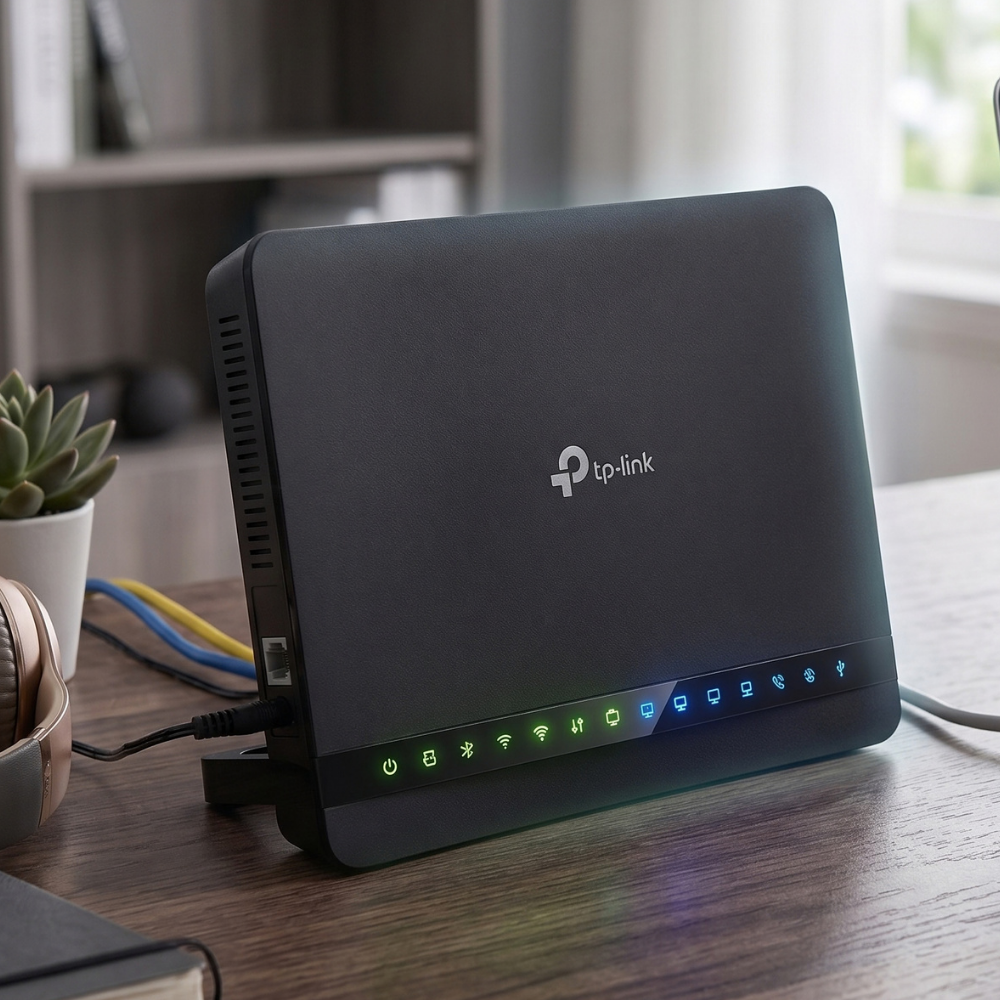
Please tap the Wi-Fi router you have received and follow the steps to set it up.
Steps to Set Up TP Link Router
Plug it in
Please select whether you have a Phone Line or an ONT Box, then follow the steps shown below.
- 1
Connect the phone cable
Plug one end of the grey phone cable into the DSL port on the back of the router, and the other into your master phone socket. If your socket doesn't have a built-in broadband port, use the small filter (splitter) from the box.
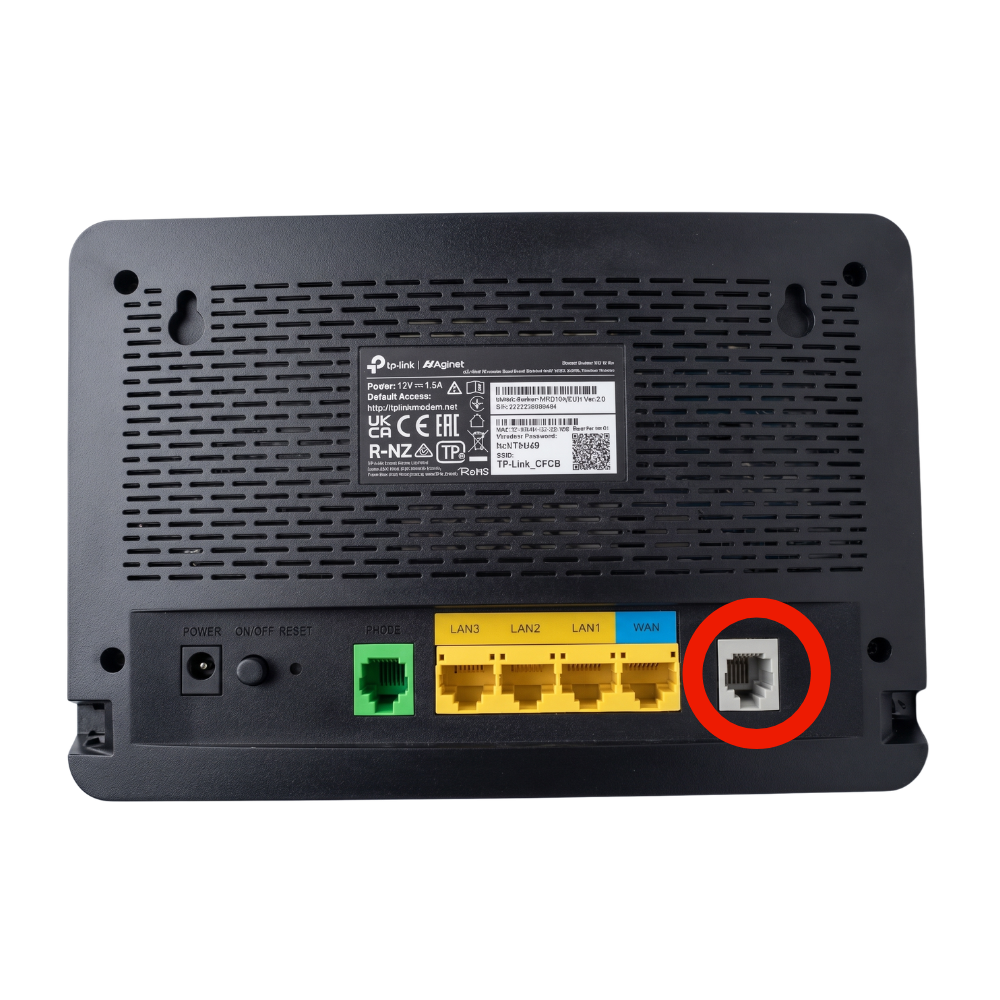
The grey phone cable goes into the grey socket - 1
Connect to the fibre box
Plug one end of the network cable into the router's yellow WAN port (labelled with a blue sticker), and the other into the LAN port on your fibre box (ONT).
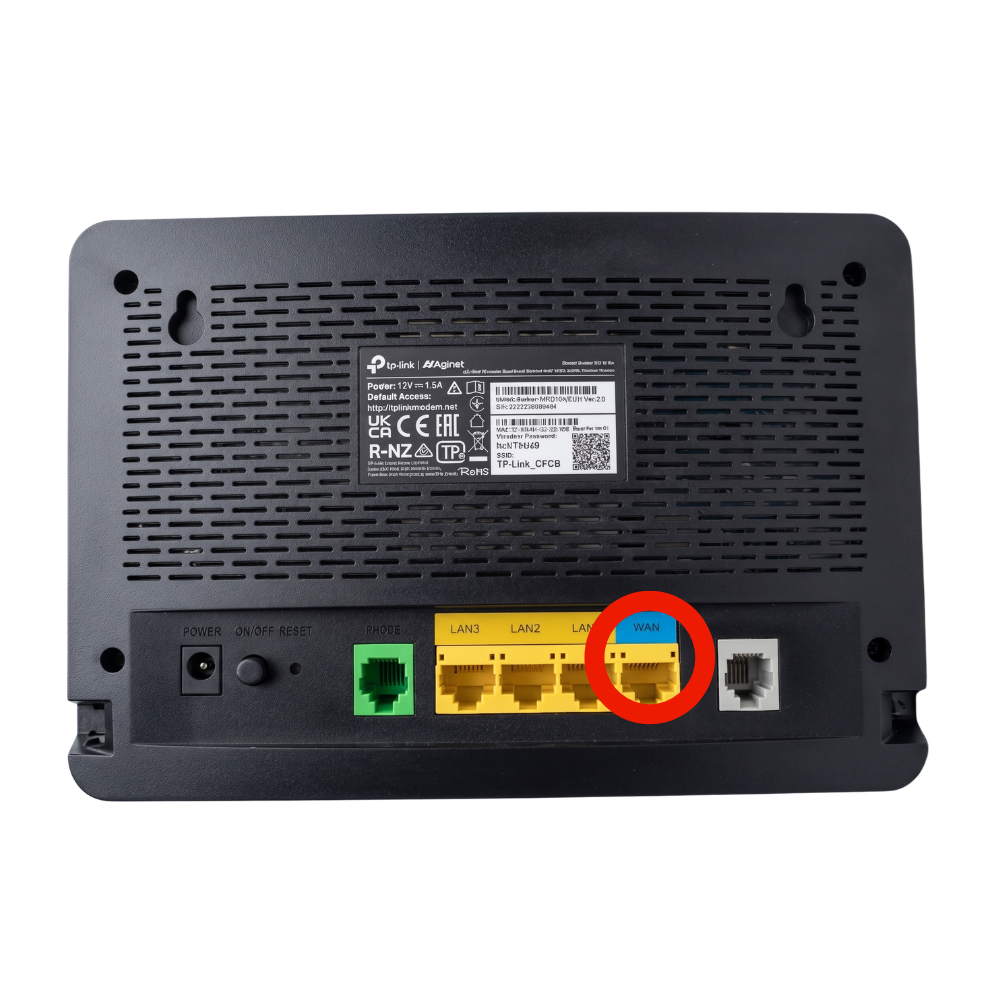
On the router: use the yellow WAN port with the blue sticker 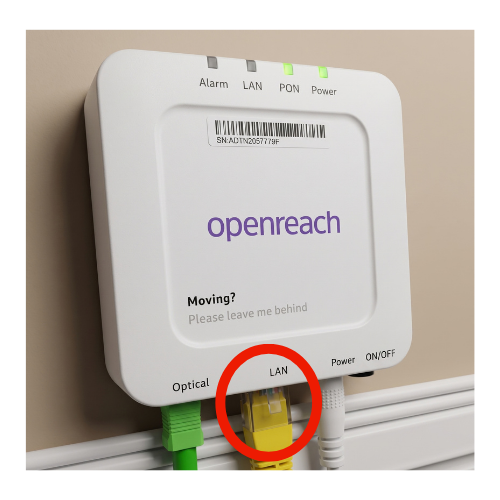
On the fibre box: use the yellow LAN port - 2
Power on
Connect the power adapter, plug it into the wall, and press the ON/OFF button on the back.
- 3
Wait for the blue lights
Give it 2–3 minutes. Look for these symbols on the front of the router. Before carrying on, check they are lit solid blue (not flashing):
Power
Solid blueDSL
Solid blue. Can take 1–2 minutes to settleWAN
Solid blue once the fibre box cable is connectedInternet
Solid blue once your line is live
Connect your devices
- 2.1
Find your Wi-Fi details
Turn the router over. The label underneath shows your Wi-Fi name and password.
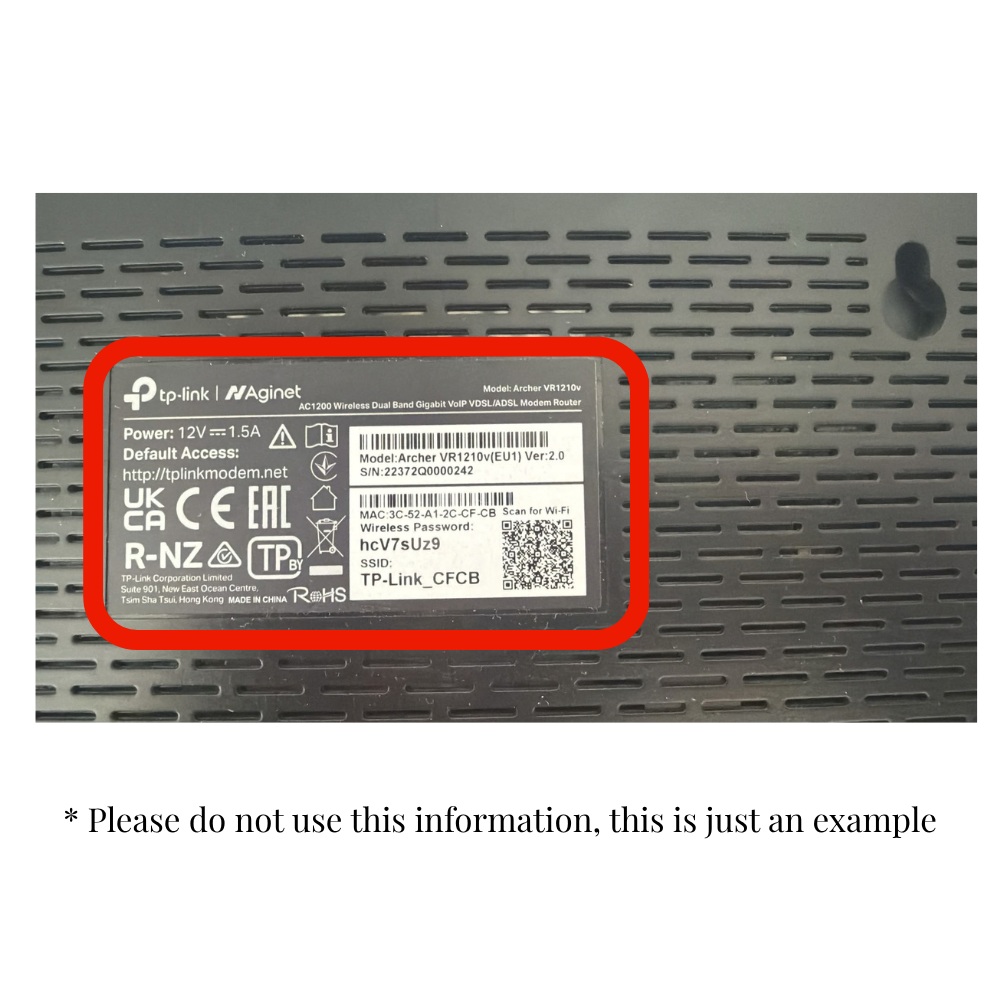
- 2.2
Join the network
On your phone, card terminal or till, open Wi-Fi settings, choose the network name from the label and type the password exactly as printed.
Card machines and EPOS tills work best on the network without “_5G”, which reaches further.
- 2.3
Prefer connecting with a cable?
Connect an Ethernet cable to any of the yellow LAN sockets on the router. This works well for devices that stay in one place, like a till or back-office computer.
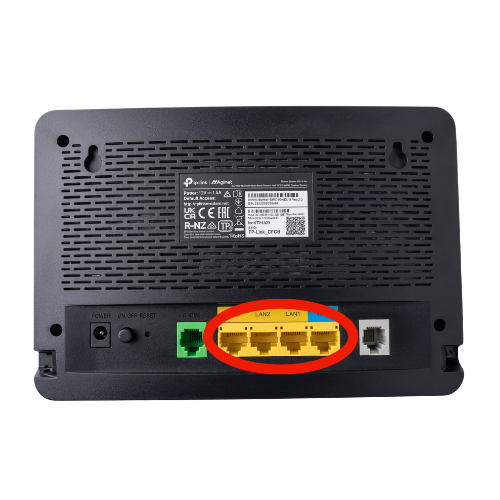
Use any of the yellow LAN sockets - 2.4
Using a phone handset with a VoIP line?
Plug the phone handset into the green socket on the router with a grey phone cable.
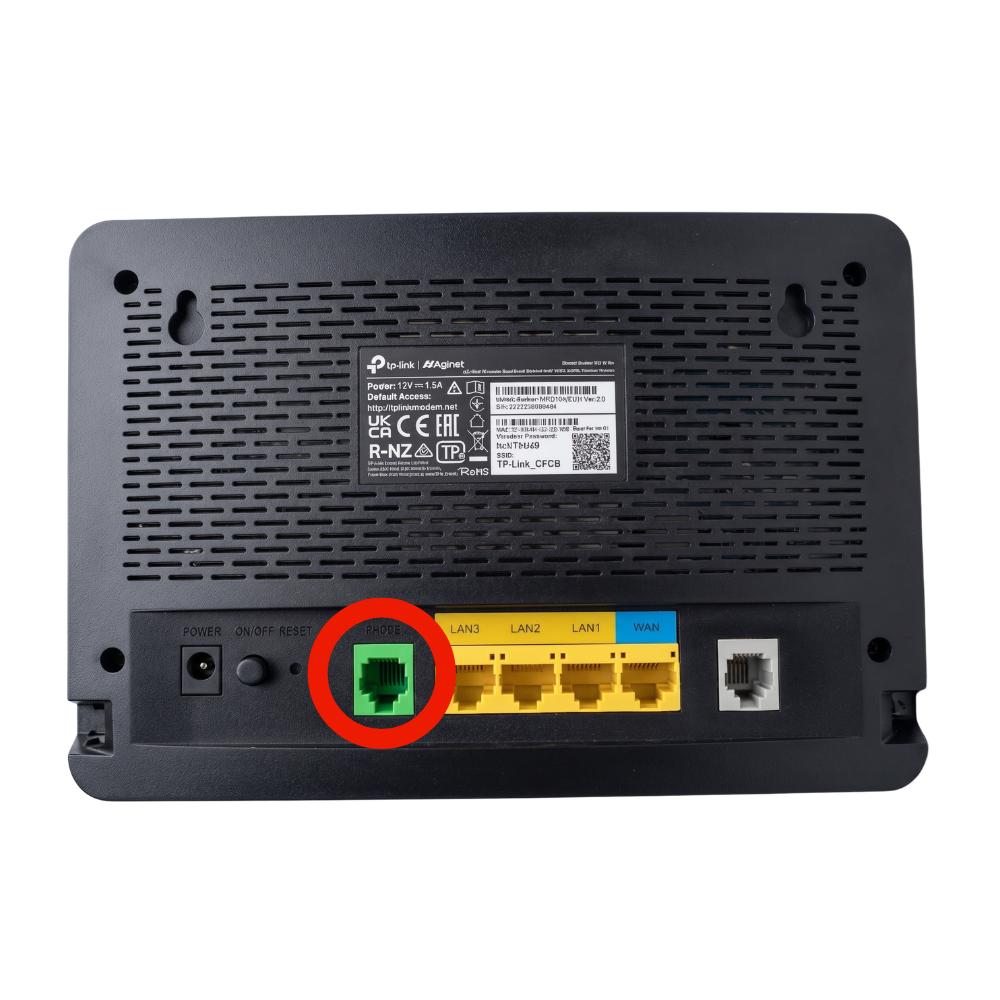
The handset goes into the green socket
Steps to Set Up Zyxel DX3301 Router
Plug it in
Please select whether you have a Phone Line or an ONT Box, then follow the steps shown below.
- 1
Connect the phone cable
Plug one end of the grey phone cable into the DSL port on the back of the router, and the other into your master phone socket. If your socket doesn't have a built-in broadband port, use the small filter (splitter) from the box.
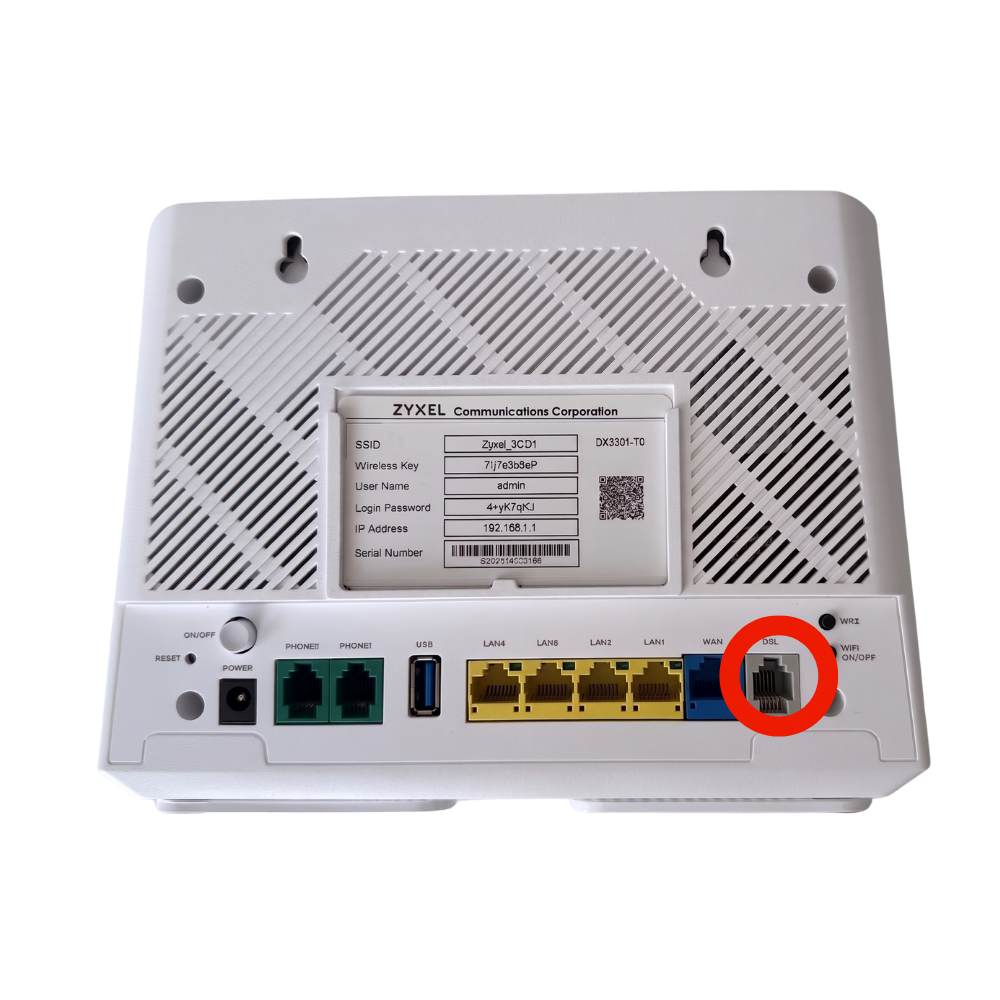
The grey phone cable goes into the grey socket - 1
Connect to the fibre box
Plug one end of the network cable into the router's blue WAN port, and the other into the LAN port on your fibre box (ONT).
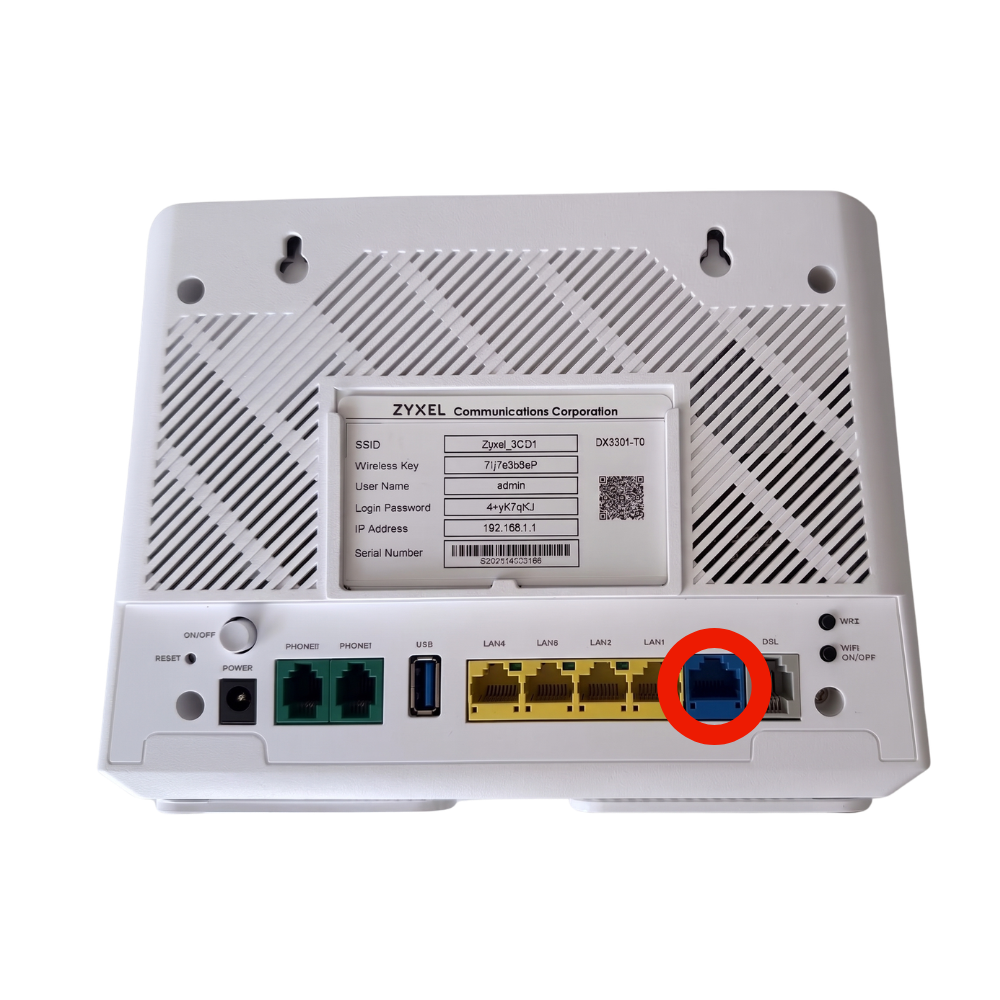
On the router: use the blue port labelled WAN On the fibre box: use the yellow LAN port - 2
Power on
Connect the power cable, plug it into the wall, and press the POWER button.
- 3
Wait for the green lights
The first start takes a few minutes while the router collects its settings. Look for these symbols on the front of the router and check they are lit green:
Power
Flashes green while starting up, then stays solid greenDSL
Flashes while connecting, then stays solid greenWAN
Solid green once the fibre box cable is connectedInternet
Green once your line is live. It may flicker while you're using the internetIf the Internet light turns red, the router can't get online yet. Check the cables, wait a few minutes, then contact us if it stays red.
Connect your devices
- 2.1
Find your Wi-Fi details
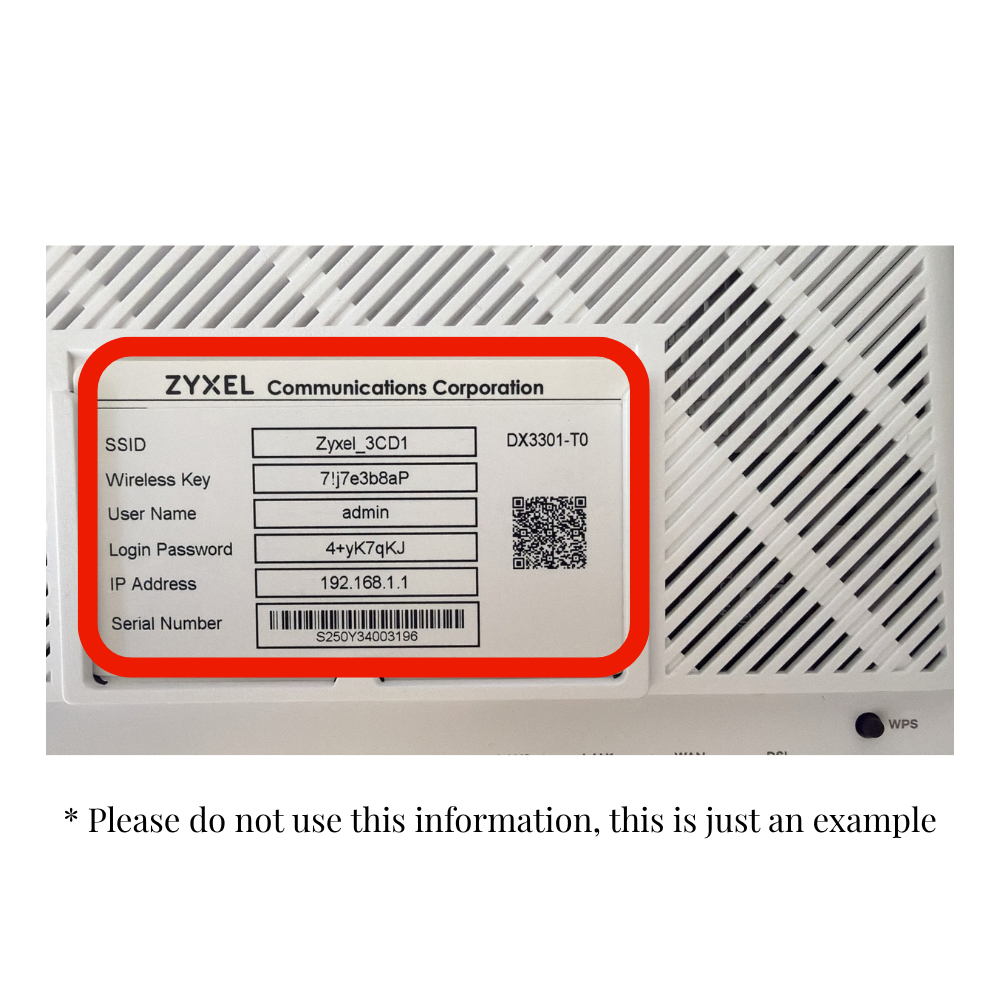
Turn your router over, and you'll find your Wi-Fi name and password printed on the label (or pull-out card) on the router.
- 2.2
Join the network
On your phone, card terminal or till, open Wi-Fi settings, pick the network name from the label and enter the password exactly as printed.
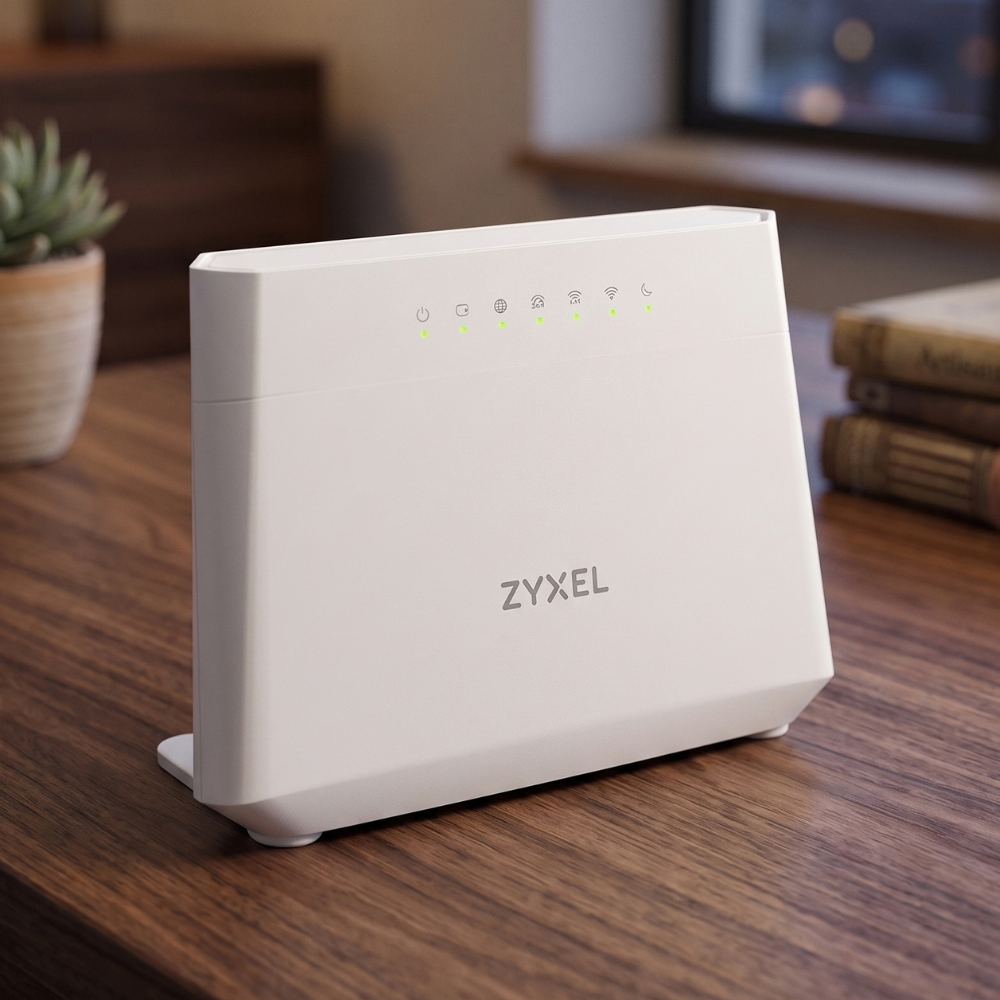
Quick connect with WPS: if your device supports WPS, press the WPS button on the router, then choose WPS on your device within 2 minutes. No password needed.
- 2.3
Prefer connecting with a cable?
Connect an Ethernet cable to any of the yellow LAN sockets on the router. This works well for devices that stay in one place, like a till or back-office computer.
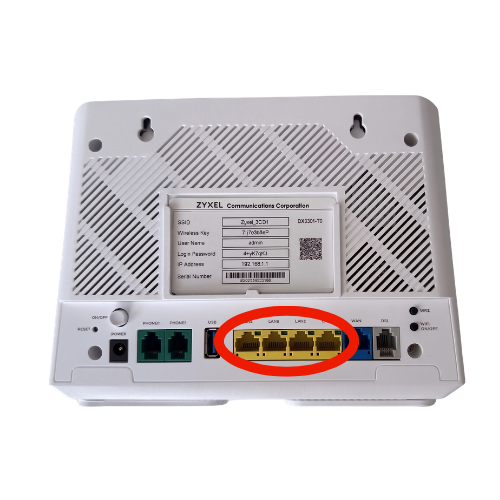
Use any of the yellow LAN sockets - 2.4
Using a phone handset with a VoIP line?
Plug the phone handset into the green socket on the router with a grey phone cable.
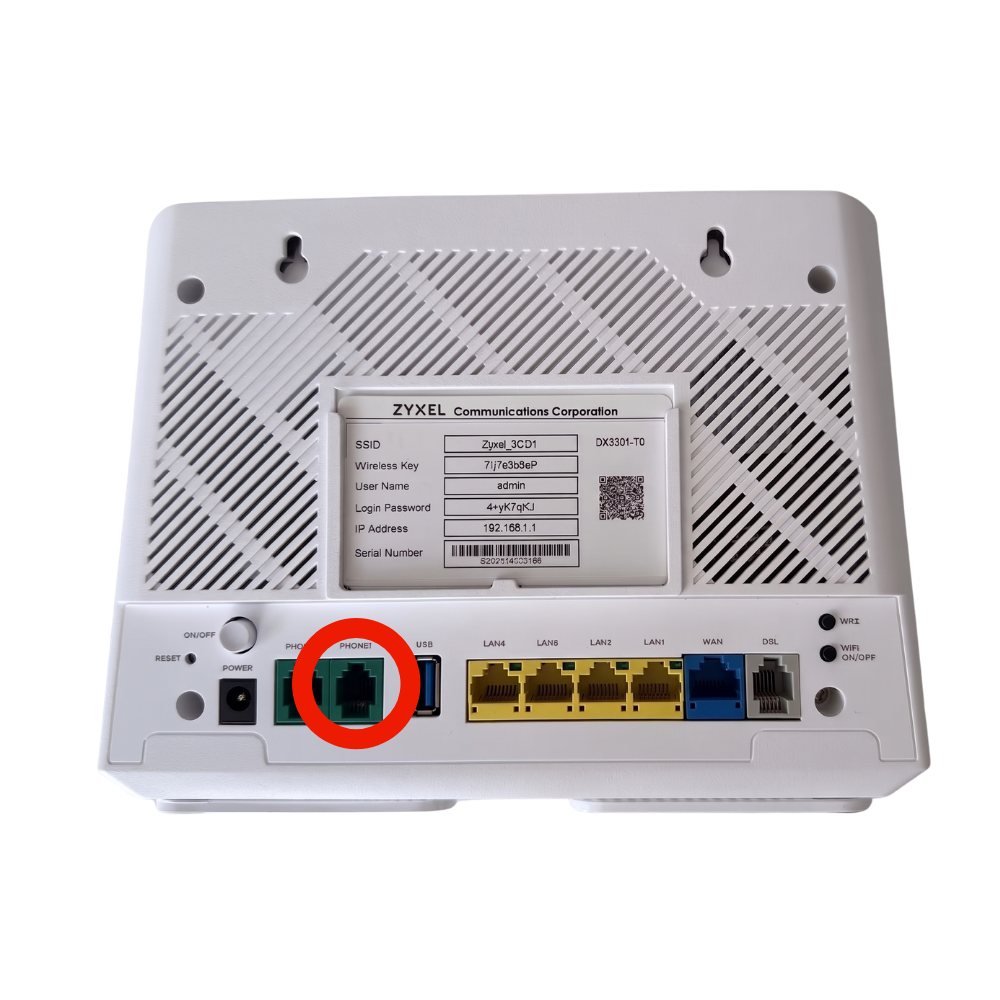
The handset goes into the green socket
Need Help?
Please email us at support@beewiseltd.co.uk for any further assistance.